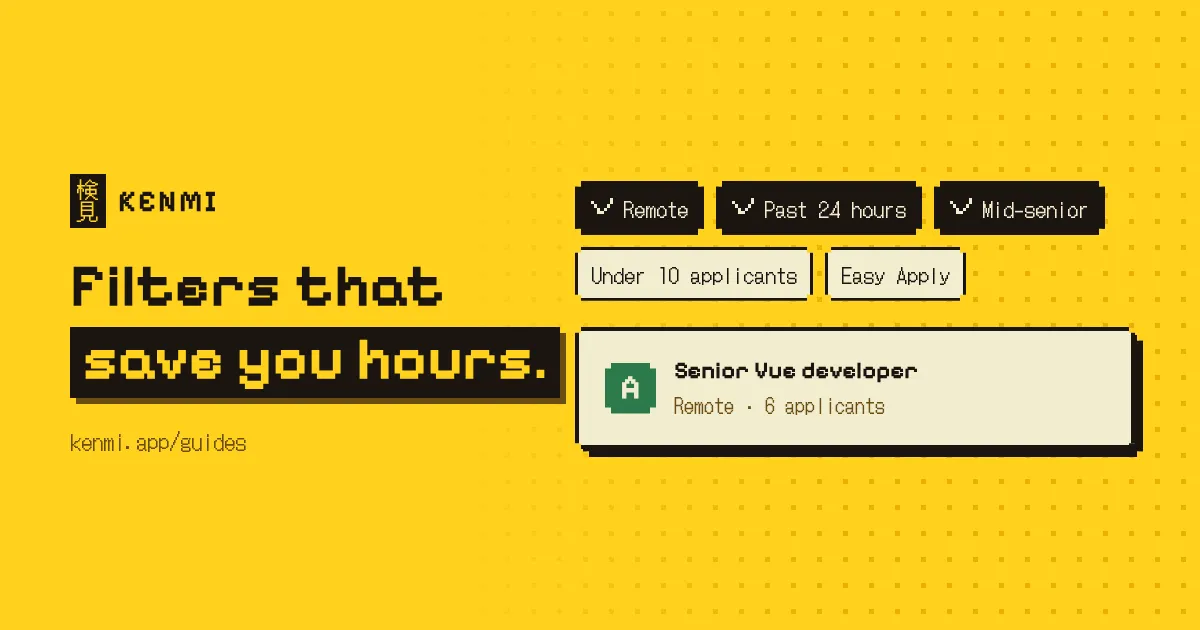
The most useful LinkedIn job search filters are date posted, experience level, remote options and Easy Apply. Combine them into a few strict saved searches for the roles you want most, and keep one looser search too, because poorly categorized jobs slip past strict filters.
The filters that actually matter
LinkedIn gives you a long list of filters. Most people either ignore them completely or switch on every single one. Neither works very well, because a small handful does nearly all the work.
Date posted is the one I'd set first. "Past 24 hours" or "past week" keeps the list down to posts where applying early still makes a difference, and it quietly hides the stale roles that have been sitting there for a month.
Experience level comes next. It cuts out roles far above or below where you are, which on a busy search can be half the results. Then there's the remote, hybrid and on-site filter. If location is a hard requirement for you, set it and stop thinking about it.
Easy Apply is more of a judgment call. It shows roles you can apply to without leaving LinkedIn, which is handy, but it also attracts a flood of applicants. Our guide on when LinkedIn Easy Apply is worth using goes into that in more detail.
The "under 10 applicants" filter, when LinkedIn shows it, is probably the best way to get to a post before the crowd does. Company, industry and job type (full-time, part-time, contract or internship) are useful too, mostly when you already know the kind of employer you're after.
Salary filters exist in some regions. I wouldn't lean on them. Plenty of posts don't list pay at all, so a strict salary filter hides good roles for no real reason.
Turning filters into saved searches
One giant search with everything switched on is rarely the right answer. A few focused searches work better, and setting one up only takes a minute.
- Start with precise keywords. A specific role or skill, like "frontend engineer" Vue, beats a generic title every time.
- Add only the filters that are true requirements. Remote, experience level and job type are usually the non-negotiable ones.
- Add a time filter that matches how often you'll check, so "past 24 hours" for a daily search and "past week" for a weekly one.
- Turn on the job alert. That saves the search and tells you when new matches show up.
- Repeat for each kind of role you want.
Two to four saved searches is enough for most people. More than that and you'll stop checking some of them, which defeats the point.
The same approach works on freelance platforms. If you also look for contract work, our guide to setting up Upwork job alerts covers the freelance version.
An example set of searches
Say you're after a remote frontend role. Here's roughly what I'd save.
The first search is the strictest one, checked every day. It's "frontend engineer" Vue, remote, mid-senior level, full-time, past 24 hours. Anything that shows up here is worth applying to the same day.
The second is also strict and also daily, but from a different angle. It's "frontend developer" TypeScript, remote, past 24 hours, Easy Apply. Companies word the same job in different ways, so a second title catches posts the first one misses. Easy Apply keeps these quick.
The third is the loose one. Frontend OR "web developer", remote, past week, and no experience level filter at all. I'd check it once a week. It's there to catch roles posted with the wrong level or an odd title.
Your keywords will be different, but that shape holds up for most roles. A couple of strict searches you check daily, plus one loose search as a safety net.
Why strict filters miss good jobs
Filters only work if jobs are categorized correctly. Often they aren't.
Whoever posts the job picks the experience level, the workplace type, the industry and the title, and those choices aren't always careful. A senior role gets tagged as entry level. A remote job never gets the remote tag. The title ends up as something nobody would ever search for.
From experience
Filters have been genuinely useful for me, but I've also seen how badly some jobs get categorized. A role that fits you perfectly can be filed under the wrong experience level or be missing the remote tag, and a strict search will never show it. That's why I keep a few tightly filtered searches saved, plus one that isn't so strict.
So the loose search is doing real work. You don't need to read every result in it, just skim once or twice a week for anything your strict searches should have caught and didn't.
Getting through the results quickly
Even a well-filtered search returns posts that aren't worth your time. Some have been reposted for months, some are too vague to judge, and every so often one is a scam. Our guide to spotting LinkedIn job scams lists the warning signs.
My routine for a results page is pretty simple. I read the title and the company first, and if either looks off, I move on. Then I check when it was posted and how many people have applied. An old post with hundreds of applicants rarely deserves a tailored application. After that I skim the description for specifics, like a named team, clear responsibilities and real requirements, since those usually mean there's an actual opening behind the post.
The best fits get my attention first. Speed matters most on the roles you want most.
This is also the step where filters run out of road. They narrow the list, but they can't read a description and compare it with your experience. That's the gap Kenmi fills. It grades each LinkedIn job you open against your resume and rules. If you're curious what that looks like in practice, you can watch Kenmi grade a feed.
How often should you check?
Match the schedule to the search. The strict searches for roles you really want deserve a daily look, ideally around the same time each day, so you can apply while posts are fresh. The loose search can wait.
Alerts help here. Set the strict searches to notify you as soon as possible and the loose one to a daily or weekly digest. That way the important posts reach you quickly and the rest don't interrupt your day.
If a search sends more posts than you can realistically read, it's too broad, so tighten the keywords or add a filter. If it hasn't shown anything useful in weeks, it's either too narrow or the role just isn't posted under that name. Try a different title before giving up on it.
A few other habits that help
Keep your profile in line with your searches. Recruiters search with the same keywords you do, so if your headline says one thing and your saved searches say another, you're harder to find.
Boolean keywords are worth learning if you haven't already. Most job searches accept quotes and operators like OR and NOT, and a single NOT can clear out a whole category of irrelevant roles.
Be deliberate with the open to work setting. You can signal to recruiters privately without putting the green banner on your photo, and I think that's the better default for most people.
And once a month, look at your saved searches with fresh eyes. If one hasn't produced a single good lead in that time, delete it and try a different angle.
Questions people ask
- What are the most useful LinkedIn job search filters?
- Date posted, experience level, remote options and Easy Apply cover most needs. The under 10 applicants filter is useful when it is available.
- Can I save a LinkedIn job search?
- Yes. Set your keywords and filters, then turn on the job alert for that search to save it and get notified about new matches.
- Why am I missing jobs that fit me?
- Jobs are sometimes categorized poorly, so strict filters can hide them. Keep one looser search alongside your strict ones.